Step 2.3: Add your light bulb to Alexa
Alexa will let you control and organize all your smart devices in one place for free. You can use more time-saving tricks like voice controlling devices without lifting a finger. Automatically turn on and off devices on a schedule, set timers while you cook or add groceries to your shopping list by voice. Let’s get started making your life easier! I’m assuming you read the guide to buying a smart bulb here and have your very first smart device. Here are the steps we’ll take:
- Set up the smart bulb in your manufacturer’s app
- Install Alexa app on your phone
- Add the smart bulb to Alexa
- Create a group in Alexa for the bulb to be put in
- Have fun!
This step is the trickiest. The instructions depend on what smart bulb you purchased. If you bought a Philips Hue bulb you need to install the Philips Hue app from the app store on your phone and connect the smart bulb to it. Same for a WiZ light bulb or any other bulb. The steps are different, depending on which smart bulb you bought, so follow the manufacturer’s instructions to add the bulb to the manufacturer’s app.
Why do you have to connect the bulb to the manufacturer’s app and not Alexa? Great question! Alexa needs to control the bulb by communicating with the app. Think of it like a translator that helps Alexa speak the language your smart bulb knows.
Got it all set up? No? Shoot me an email and I’ll try to help you out. All set now? Great! Let’s go to the next step.
Let’s install Alexa from your app store. If you don’t already have Prime or an Amazon account, you will need to create an Amazon account to set up Alexa. You can do that from the amazon.com site or when you first bring up the Alexa app. Go ahead and do that now. Log into your Amazon account in the Alexa app. Once you do that, you will see the home screen.
For Alexa to control the smart bulb it needs to talk to your smart bulb app. That means if you bought a WiZ bulb, Alexa will control it by talking to the WiZ app on your smart phone. Let’s walk through the steps to get the smart bulb added to Alexa:
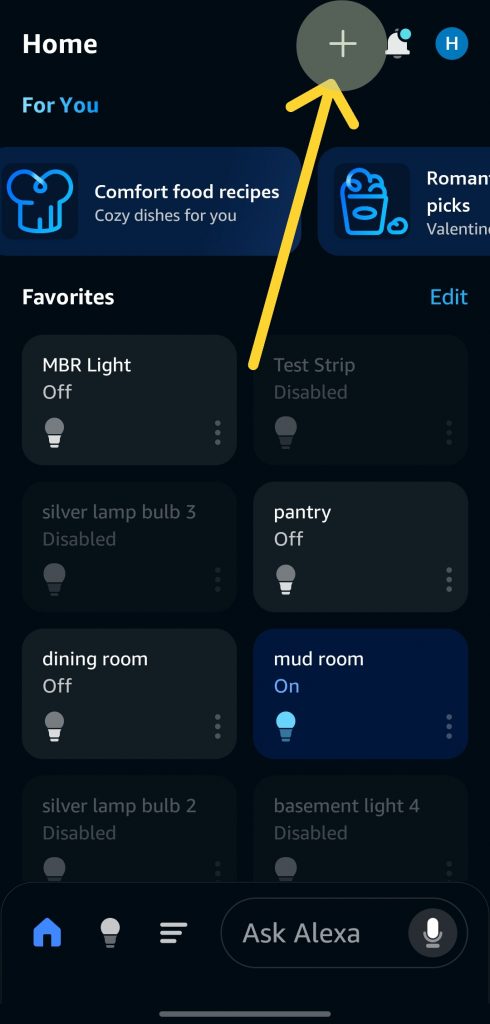
a. From the Alexa home screen press the + button in the upper right:
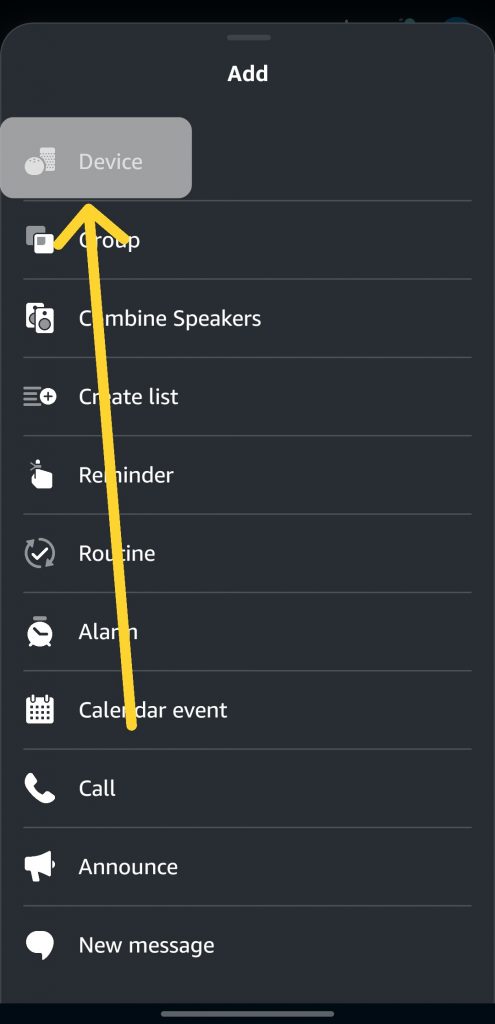
b. Select device from the menu that pops up:
c. choose light from the list. If you want to add a different device, such as a smart plug, choose that instead:
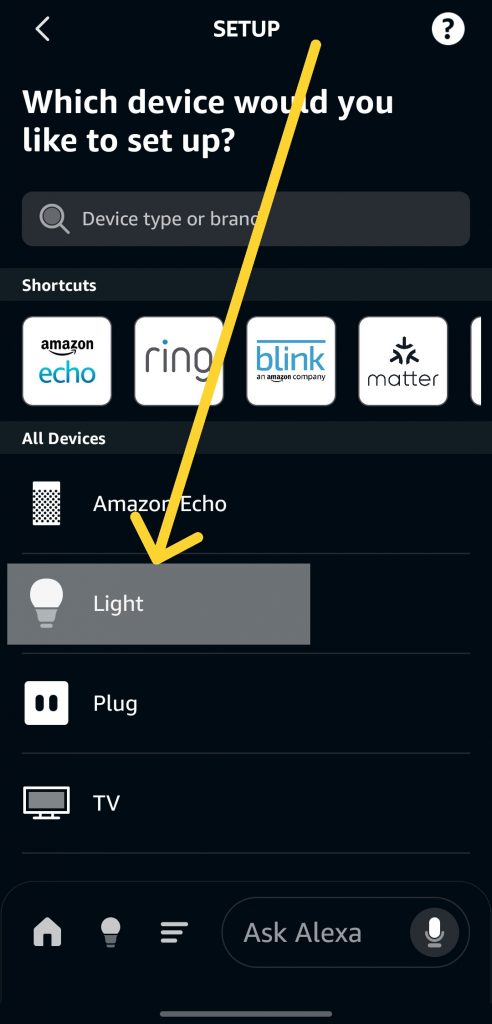
d. Find your device brand from the list. For example, if you bought a WiZ smart bulb, you’ll see WiZ listed here. If you bought Philips, you’ll see Philips here.
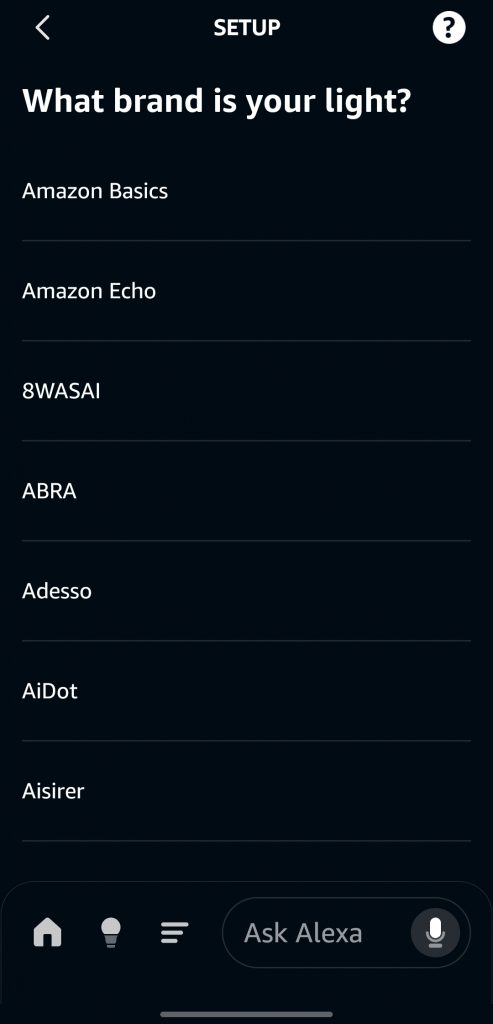
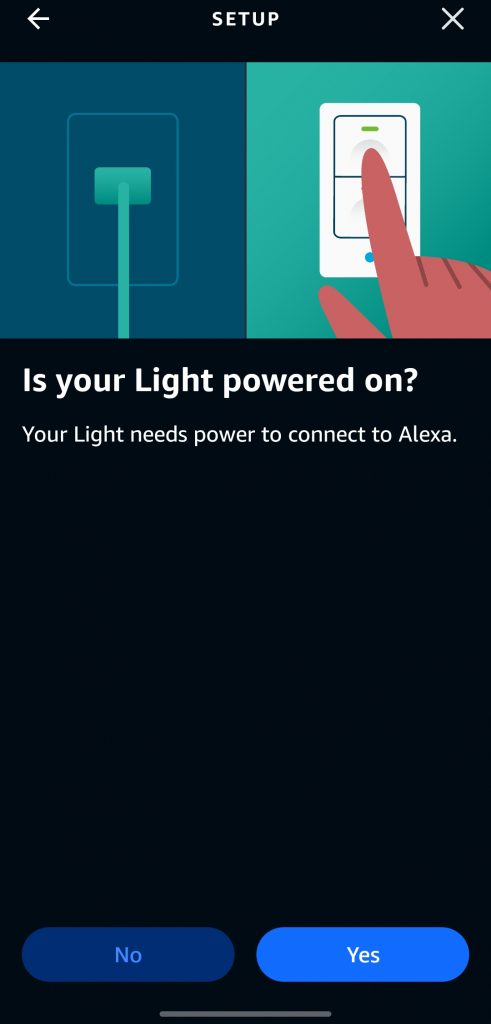
e. follow the prompts to get Alexa connected to your smart device.
f. Press the light bulb icon on the bottom to switch to your device screen and you should see the new light bulb there!
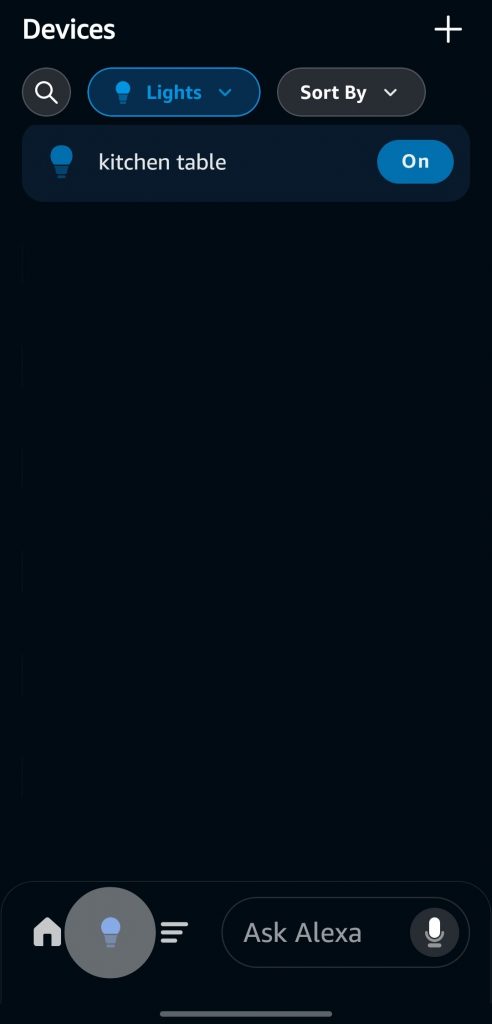
Great! Your smart bulb is now connected to Alexa and she can control it like a helicopter parent. Now let’s create a group to put the smart bulb in. Why? Just think of the group as a room in your house. If you set up a group and put the bulb in it, you can not only control the smart bulb directly but also control it by controlling the room. For example, if your bulb is in your kitchen, you can command Alexa to turn off the lights in the kitchen and the bulb will automatically turn off along with any other lights you set up there. It’s a very convenient way to control multiple devices at once.
a. click the ‘+’ in the upper right of the home screen
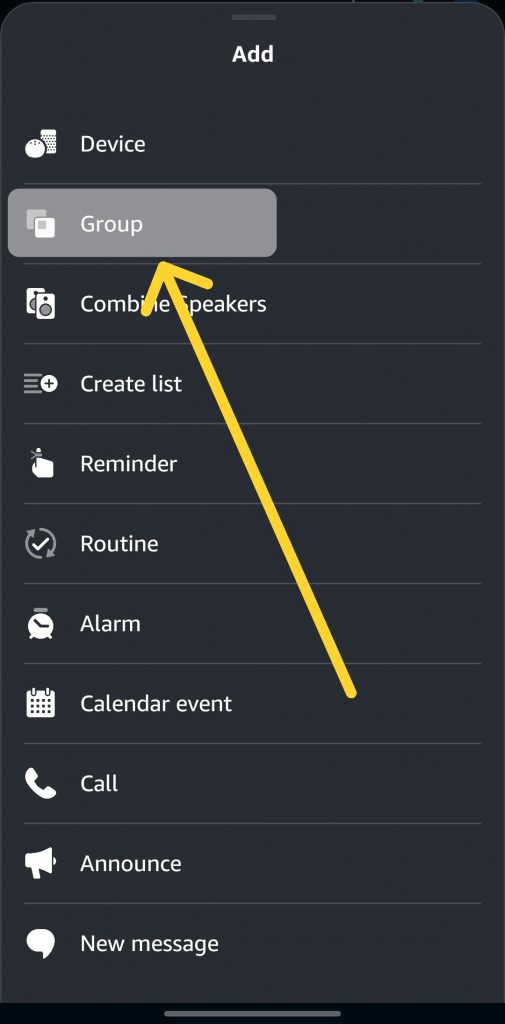
b. Select “Group” from the list
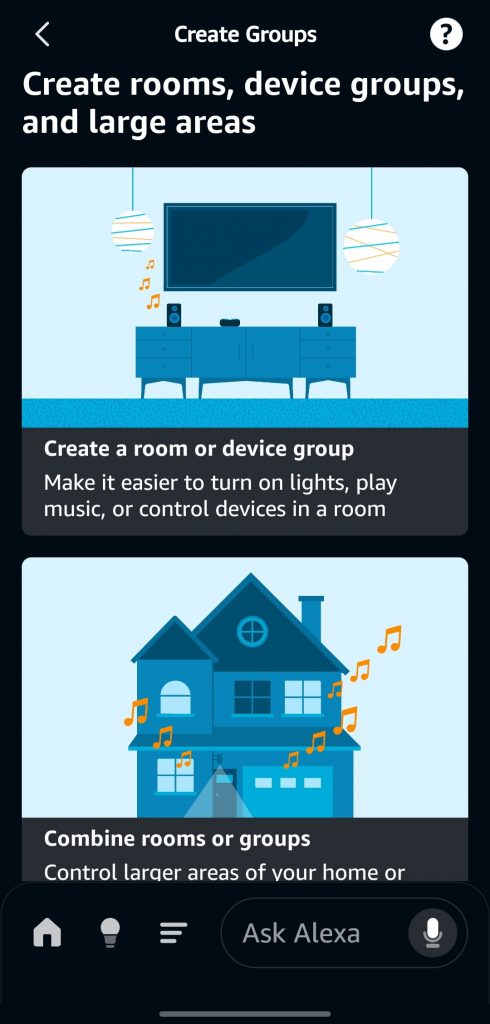
c. Select Create a room or device group
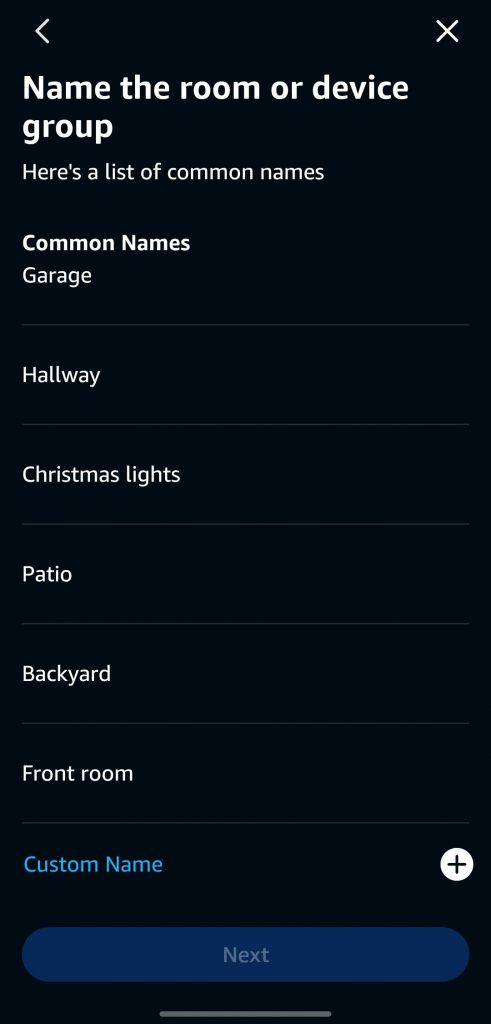
d. Go through prompt to either name the room something unique or choose a common name like “Bathroom” or “Kitchen.” If you would like to input your own name, press the “Custom Name” word in blue and that will let you type in something of your choosing.
What’s in a name? Alexa has many default room names. I recommend using those first, because it makes it easy for Alexa to recognize the voice command. “Turn off the lights in the master bedroom” is a lot easier to understand than “Turn off the lights in Saoirse Featherstonehaugh’s room.” Then again, it can be fun to call your basement Mordor, so have at it.
e. After you name the room, you will have the option to add your smart device to the room. Select it and select “Next.” If you have an Alexa device like an Echo Dot, you can add it to the room on the next screen. Otherwise, hit the “Skip” button to finish the setup.
Congratulations you did it! Let’s take a step back to see how far we’ve come. Not only did you choose and buy a smart bulb, you connected it to your smartphone. On top of that, you are controlling it in an organized way in Alexa. For someone starting off in the smart technology world, that’s a big accomplishment!